

A frozen EHR, failed patient portal login, missing appointment confirmation, or malfunctioning label printer can disrupt an entire medical office. Every technical failure carries operational consequences, from longer waiting times to patient identification errors and potential privacy violations. Medical administrators need reliable methods to recognize problems, perform safe initial checks, and escalate serious incidents. This interactive dictionary explains essential troubleshooting terminology, practical solutions, and recovery workflows for practice management systems, patient portals, scheduling applications, and everyday healthcare technology.
1. Medical Admin Tech Troubleshooting: Essential Terms, Error Codes, and First-Line Solutions
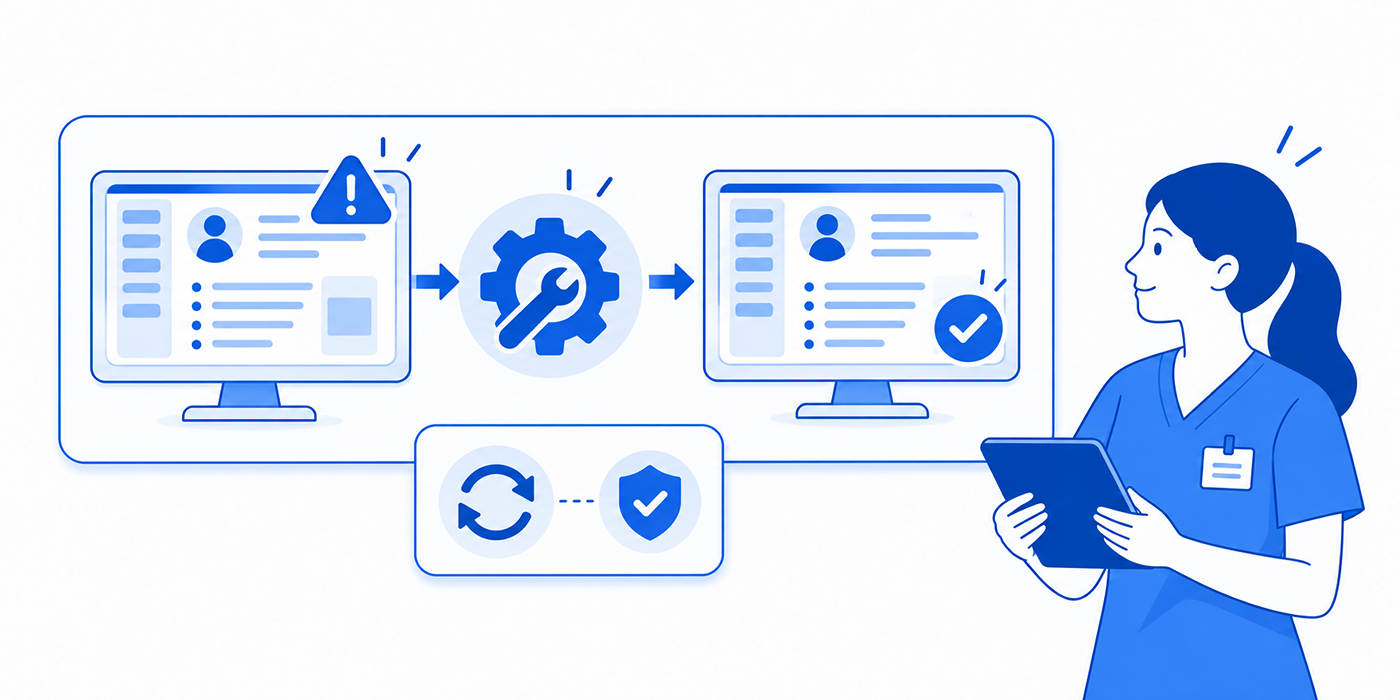
Medical administrative troubleshooting involves identifying why healthcare technology fails, determining its operational impact, and applying an approved resolution process.
Unlike ordinary office troubleshooting, healthcare technology problems can affect clinical documentation, appointment accuracy, patient identification, and access to sensitive information. A seemingly simple issue such as an incorrectly configured barcode scanner could result in a record being opened for the wrong patient.
The objective is to resolve routine issues efficiently while protecting confidential patient information, maintaining medical compliance standards, and preventing avoidable interruptions to patient care.
Understand the Four Troubleshooting Categories
1. Access and authentication failures
These occur when employees or patients cannot access a system despite having an account. Common causes include expired sessions, incorrect permissions, multi-factor authentication failures, and identity-provider interruptions.
Understanding patient portal management, secure healthcare communication, and patient privacy requirements helps administrators recognize when an access issue requires identity verification or security escalation.
2. Hardware and local connectivity problems
Printers, scanners, workstations, wireless connections, and local networks can fail independently of the EHR itself. Identifying whether an issue affects one workstation or the entire practice helps avoid unnecessary troubleshooting.
Equipment failures should be handled according to medical records procedures and professional front-desk standards, especially when devices handle patient labels or printed clinical information.
3. Application and integration errors
These involve inconsistent information between systems, such as an appointment appearing in the scheduler but missing from the EHR, or a canceled appointment continuing to trigger automated reminders.
Resolving them requires understanding data ownership, integration messages, synchronization delays, and healthcare automation workflows.
4. Security and operational continuity incidents
These include suspicious account activity, ransomware indicators, network outages, and complete EHR unavailability. Such events may require immediate involvement from IT, security, clinical leadership, and privacy personnel.
An effective response follows approved crisis communication procedures, team communication protocols, and organizational downtime policies.
Search by problem, error code, device, or technical term.
| # | Term or Error | What It Means | First Safe Check | Escalation / Solution |
|---|---|---|---|---|
| 1 | EHR Session Timeout | The EHR ends an inactive or expired session. | Confirm whether the login screen appears normally. | Sign in through the approved process; contact IT if sessions expire abnormally. |
| 2 | Single Sign-On (SSO) | One identity service authenticates users across several applications. | Check whether other approved applications also reject login. | Escalate widespread authentication failure to IT or identity administrators. |
| 3 | Multi-Factor Authentication (MFA) | Additional identity verification required during login. | Check approved device availability and the documented sign-in method. | Use official account recovery; never share verification codes. |
| 4 | Role-Based Access Control (RBAC) | Permissions assigned according to job responsibilities. | Identify the specific task or record being denied. | Request an authorized role review rather than borrowing another login. |
| 5 | HTTP 401 | Request lacks valid authentication credentials. | Verify the session has not expired. | Reauthenticate through approved methods; IT checks tokens if repeated. |
| 6 | HTTP 403 | Server refuses an authenticated or otherwise understood request. | Confirm the user has the required authorization. | IT reviews permissions and application policies. |
| 7 | HTTP 429 | Application or API has exceeded a rate limit. | Check whether many repeated requests occurred. | IT or vendor implements appropriate backoff and retry controls. |
| 8 | HTTP 500 / 503 | Server-side error or service temporarily unavailable. | Check approved service-status information and scope of outage. | Report to IT or vendor rather than repeatedly submitting transactions. |
| 9 | TLS Certificate Error | Browser cannot validate a secure server connection. | Check correct URL and workstation date/time. | Stop accessing the affected page and escalate; never bypass warnings. |
| 10 | DNS Resolution Failure | Device cannot translate a service name into a reachable address. | Check whether other approved websites or applications work. | IT reviews DNS configuration and service availability. |
| 11 | VPN Failure | Approved remote connection cannot establish or maintain access. | Confirm regular internet connectivity and VPN status. | IT checks authentication, certificates, and network access. |
| 12 | Wi-Fi Instability | Wireless connection repeatedly disconnects or experiences poor performance. | Check signal status and whether nearby workstations are affected. | IT examines coverage, access points, and interference. |
| 13 | Local vs. System-Wide Outage | Failure affects one device, a department, or an entire application. | Ask whether coworkers experience the same issue. | Use the affected scope to route the incident correctly. |
| 14 | Browser Cache Conflict | Stored browser resources interfere with current application behavior. | Confirm application support for another approved browser session. | IT provides safe browser troubleshooting instructions. |
| 15 | Browser Compatibility | Application functions incorrectly in an unsupported browser. | Compare current browser version with vendor requirements. | Use an organization-approved supported browser. |
| 16 | Device Clock Drift | Workstation clock differs from accurate network time. | Compare displayed time with approved reference time. | IT corrects time synchronization affecting authentication or logs. |
| 17 | Print Spooler | Operating-system service managing pending print jobs. | Check printer selection and queue status. | IT clears or restarts queues after checking for sensitive pending jobs. |
| 18 | Printer Driver | Software translating print requests into printer instructions. | Confirm correct printer and approved configuration. | IT reinstalls or updates an approved compatible driver. |
| 19 | Label Template Mismatch | Printed label format does not match wristband or label stock. | Inspect alignment without exposing patient information. | Stop affected label production and verify approved templates. |
| 20 | Barcode Scanner Failure | Scanner fails to read or correctly transmit a barcode. | Inspect device connection and test with approved nonpatient data. | IT checks scanner mode and configuration; staff verify identity manually per policy. |
| 21 | Portal Account Activation | Patient cannot complete first-time portal enrollment. | Verify identity and approved activation status. | Use authorized patient portal recovery procedures. |
| 22 | Patient Identity Proofing | Process verifying that a person is entitled to access a record. | Confirm approved identity-verification requirements. | Refer unresolved identity discrepancies to authorized registration personnel. |
| 23 | Duplicate Medical Record Number | One patient may have multiple medical-record identities. | Check whether records appear potentially duplicated. | Refer to the health information management team; do not merge independently. |
| 24 | Patient Record Overlay | Information from different people becomes incorrectly combined. | Stop the affected workflow and notify the designated team. | Escalate urgently for controlled identity investigation and correction. |
| 25 | Appointment Sync Failure | Scheduling updates do not reach another system. | Compare booking identifiers and statuses in approved applications. | IT reviews integration events and scheduling conflicts. |
| 26 | HL7 Interface Queue | Messages waiting to be transmitted or processed. | Report delay and affected interface without modifying messages. | Integration team reviews queued, failed, or rejected messages. |
| 27 | HL7 Acknowledgment (ACK) | Message indicating receipt or processing outcome at a defined interface stage. | Check whether downstream booking or result actually updated. | Integration team traces application-level status and errors. |
| 28 | FHIR API Failure | Structured healthcare data exchange request fails. | Record approved error code and affected action. | IT or vendor checks endpoint permissions, payload, and response. |
| 29 | Time-Zone Mismatch | Appointment time appears differently across systems. | Confirm location, intended local time, and actual booking. | IT checks time-zone mapping and reminder settings. |
| 30 | Eligibility 270/271 Error | Insurance eligibility request or response is missing, invalid, or unsuccessful. | Check payer selection and transaction status. | Billing or integration team investigates payer connectivity and response details. |
| 31 | Payment Gateway Timeout | Payment-processing response is delayed or missing. | Check transaction status through the approved system. | Verify payment outcome before retrying to avoid duplicate charges. |
| 32 | Notification Delivery Failure | SMS, email, or portal notification does not reach its destination. | Verify contact details, consent/preferences, and delivery status. | Check secure messaging workflow and provider logs. |
| 33 | Audit Trail | Recorded history of activity and system changes. | Capture the time and event involved. | Authorized staff review logs under compliance procedures. |
| 34 | EHR Downtime Mode | Approved workflow used when electronic records are unavailable. | Confirm whether formal downtime procedures have been activated. | Follow clinical leadership and IT instructions for safe continuity. |
| 35 | Recovery Time Objective (RTO) | Target maximum duration to restore a service after disruption. | Identify the criticality of the unavailable application. | IT uses recovery priorities and approved contingency plans. |
| 36 | Recovery Point Objective (RPO) | Target maximum amount of data loss measured in time. | Identify the last confirmed recoverable data point. | IT validates restoration and reconciles missing transactions. |
36 matching terms
2. How to Troubleshoot Medical Office Technology Without Creating New Risks
The safest troubleshooting process begins by identifying the failure's scope and clinical importance. A single printer malfunction requires a different response from a system-wide outage preventing physicians from accessing medication information.
Administrators should establish what failed, who is affected, when the problem began, and whether patient care or protected information is at risk.
Step 1: Identify the Exact Failure
Avoid vague descriptions such as "the computer isn't working."
Instead, record the specific symptom:
The patient portal rejects account activation.
The practice management system displays a confirmed appointment missing from the EHR.
The label printer produces an incorrect patient sticker.
The secure messaging platform shows a delivery failure.
Record the time, workstation, application, and exact error code when available. Use approved reporting channels and avoid sending screenshots containing sensitive information through personal accounts.
This supports accurate written communication, efficient team coordination, and reliable incident documentation.
Step 2: Determine Whether the Problem Is Local or Widespread
Ask whether the same problem affects other users.
If one workstation cannot access the EHR but nearby workstations function normally, the cause may involve the local browser, network connection, or user permissions.
If every workstation experiences identical errors, a server, authentication provider, network, or vendor-side service may be responsible.
This distinction reduces unnecessary device changes and helps identify the correct escalation team.
Avoid repeated system restarts when the issue involves an active clinical encounter or possible security incident. Follow approved medical compliance procedures and operational communication protocols.
Step 3: Separate Authentication, Authorization, and Availability Errors
These problems can look similar but require different solutions.
Authentication failure: The system cannot confirm the user's identity. Expired credentials or invalid sessions may produce HTTP 401 responses.
Authorization failure: The identity may be established, but the user lacks permission to complete the action. HTTP 403 commonly indicates denied access.
Service availability failure: The application or server cannot fulfill the request. HTTP 503 often indicates temporary service unavailability.
An administrator should follow official login and account recovery procedures. Requests for elevated permissions belong with authorized IT or security personnel.
Sharing credentials to regain access can violate patient privacy requirements and undermine audit trail accountability.
Use professional email communication to describe the error clearly without exposing protected details.
Step 4: Perform Approved Low-Risk Checks
Some checks can be completed safely by trained administrative personnel.
These may include confirming the correct printer, checking whether a network cable is connected, verifying that the approved application URL is being used, or determining whether the vendor has announced an outage.
Other actions require authorization, including changing network settings, disabling security tools, modifying EHR configurations, or clearing queues containing sensitive documents.
The objective is to preserve system integrity while identifying useful evidence.
For printer problems, confirm the selected printer and test with nonpatient information. For portal issues, verify identity before initiating account recovery. For scheduling inconsistencies, compare appointment status through approved scheduling workflows.
These safeguards protect patient records, confidential communication, and front-desk professionalism.
Step 5: Confirm Recovery Before Closing the Incident
A login screen loading successfully does not establish that every affected function has recovered.
An EHR may allow authentication while appointment synchronization, orders, or incoming results remain unavailable.
A successful recovery check must match the original failure. For example, test an approved appointment update when the problem involved scheduling, or verify a nonpatient label when the problem involved printer alignment.
Escalate unresolved discrepancies through healthcare team communication, medical record management procedures, and applicable clinical workflow controls.
Document the outcome, temporary workaround, responsible person, and any follow-up required.
3. High-Risk Troubleshooting: EHR Downtime, Wrong-Patient Errors, and Security Incidents
Certain technical problems require immediate escalation because ordinary troubleshooting could interfere with patient safety or expose protected information.
The 2025 SAFER Guides address EHR contingency planning, system management, patient identification, and communication reliability. Their principles help healthcare organizations establish boundaries between routine administrative checks and incidents requiring clinical or technical leadership.
EHR Downtime: Maintain Safe Clinical Operations
An EHR outage can prevent access to medication histories, clinical notes, appointments, orders, and test results.
Organizations should maintain approved downtime procedures covering emergency communication, permitted temporary documentation, clinical decision support limitations, and subsequent data reconciliation.
If the system becomes unavailable, staff should notify designated leadership and follow the formally activated downtime workflow.
Temporary documentation should be secured, clearly associated with the correct patient, and entered into the electronic record according to the recovery procedure.
A critical distinction is downtime versus recovery. Restoring access does not automatically resolve information recorded during the interruption.
Healthcare organizations must reconcile appointments, orders, test results, and documentation created during the outage.
Review medical-record management procedures, medical compliance terminology, clinical team communication, and crisis communication protocols when establishing a downtime response.
Wrong-Patient Records: Escalate Before Further Documentation
A patient-record overlay occurs when information belonging to different people becomes incorrectly associated.
This can result from registration mistakes, incorrect patient matching, integration errors, or scanning documents into the wrong record.
An administrator who suspects a wrong-patient error should stop the affected workflow and alert the designated health information management or clinical safety team.
Independent record merging, deleting documents, or quietly correcting identifiers can destroy information needed to investigate the incident.
The organization should use controlled procedures for patient identity verification, record correction, and documentation of the incident.
These practices reinforce patient privacy protections, accurate medical-record management, and appropriate medical compliance processes.
Suspicious Login Activity: Protect Credentials and Evidence
Unexpected MFA prompts, unfamiliar login notifications, or unusual password-reset messages may indicate attempted account compromise.
Employees should avoid approving unexpected authentication requests or sharing verification codes.
Report suspicious activity through the organization's security channel. Follow instructions for account recovery and device handling.
If compromise is suspected, unauthorized configuration changes can interfere with incident investigation. Security personnel should direct containment and evidence preservation.
Front-desk staff benefit from training in professional email handling, confidential communication, and secure healthcare messaging.
Ransomware Indicators: Activate Incident Procedures
Examples of potentially serious security incidents include inaccessible files accompanied by ransom demands, unusual encryption activity, or widespread workstation failures associated with suspicious messages.
An employee who notices these symptoms should immediately contact the designated incident-response team and follow its containment instructions.
Avoid experimenting with suspicious files, reconnecting affected devices, or independently attempting restoration.
The organization's approved response should address operational continuity, security investigation, patient information protection, and recovery priorities.
The HIPAA Security Rule requires covered entities and business associates, as applicable, to implement appropriate security incident procedures and contingency planning.
Administrative teams should understand their responsibilities under medical compliance processes, patient privacy procedures, and crisis communication protocols.
When to Escalate Immediately
The following situations deserve prompt attention from the responsible team:
Suspected wrong-patient documentation or mislabeled clinical material.
Inability to access information needed for safe patient care.
Suspected exposure or loss of protected patient information.
Widespread EHR failure or interrupted clinical interfaces.
Suspicious account activity or potential ransomware.
Missing or mismatched clinical orders or test results.
Staff should use established team communication procedures, professional escalation skills, and medical documentation controls.
Select your biggest troubleshooting challenge and submit your vote to receive a practical next-step recommendation.
Interactive self-assessment. Your selection is saved locally on this device. Shared voting results require a connected polling backend.
4. Real-World Medical Admin Tech Troubleshooting Scenarios and Practical Solutions
Troubleshooting becomes more effective when staff recognize common patterns instead of treating each incident as completely unfamiliar.
The following situations illustrate how administrators can isolate problems, protect patient information, and communicate accurately with technical support.
Scenario 1: EHR Freezes During Morning Patient Check-In
At 8:30 a.m., reception staff report that the EHR takes more than a minute to load patient records. Some employees experience complete freezes, while others can continue working.
Initial checks: Determine how many users and workstations are affected. Record the application, time, error messages, and whether patients can still be registered through approved methods.
If the issue affects several departments, notify IT and the designated operational supervisor. Check whether formal downtime procedures should be activated.
Avoid restarting multiple devices indiscriminately or repeatedly submitting registration transactions.
A technical investigation may identify a server capacity problem, database issue, network interruption, or vendor outage.
Administrative staff should maintain appropriate patient communication, use professional front-desk etiquette, and coordinate with clinicians through team communication procedures.
After recovery, verify that registrations completed during the interruption appear in the correct records.
Scenario 2: Patient Portal Password Reset Fails Repeatedly
A patient reports that the portal password-reset link has expired. They attempt the process several times without successfully accessing their account.
The first priority is identity verification using approved organizational requirements.
Administrators should then determine whether the invitation expired, the wrong account is being accessed, or a broader authentication failure exists.
A patient may also have multiple portal identities associated with different organizations or outdated registration details.
Use documented patient portal recovery procedures, maintain confidential communication, and apply patient privacy standards.
A successful resolution requires the correct patient to regain access to their authorized account.
Scenario 3: Patient Labels Print With Incorrect Alignment
A front-desk employee prints registration labels, but text overlaps the barcode and patient identifiers are partly cut off.
Using these labels could interfere with identification workflows.
Stop affected printing and remove unusable labels from circulation according to policy.
Confirm the selected printer, label stock, template, and intended output format. Authorized support personnel may need to adjust the driver or printer configuration.
Test with appropriate nonpatient data before resuming normal work.
If any incorrect labels were already applied to documents or specimens, notify the designated clinical or safety team promptly.
This situation connects directly to medical record accuracy, medical compliance, and safe team communication.
Scenario 4: Appointment Appears in the Scheduler but Not the EHR
A patient receives confirmation for a visit, but the clinician cannot see the appointment in the clinical schedule.
Possible causes include delayed synchronization, failed integration messages, inconsistent identifiers, or booking rejection by the authoritative platform.
Determine which application owns the booking and whether the appointment was actually confirmed.
Avoid creating another appointment until duplicate-booking risk has been assessed.
Technical staff should investigate interface events and acknowledgment processing, while authorized administrators reconcile the affected booking.
Review scheduling conflict management, practice management workflows, and appointment reminder configuration.
The resolution should ensure that the patient, front desk, and clinical team receive consistent appointment information.
Scenario 5: Insurance Eligibility Verification Times Out
During check-in, the eligibility application fails to retrieve a payer response.
This could result from an external service outage, incorrect payer selection, registration mismatch, or integration failure.
Check the transaction status in the approved system before repeating the request.
Where permitted, administrative staff may use an authorized payer portal or designated verification channel.
Distinguish eligibility status from prior authorization, referral requirements, and final benefit determination.
Follow coordination-of-benefits procedures, professional patient explanations, and written administrative documentation.
If verification remains unresolved, communicate uncertainty accurately and follow the organization's policy for proceeding with the appointment.
Scenario 6: Appointment Reminder Goes to the Wrong Number
A patient complains that someone else received their appointment reminder.
This may involve outdated contact information, incorrect patient matching, or a communication integration error.
Treat the situation as a potential privacy incident under organizational policy.
Verify the correct patient record and update contact information through authorized procedures. Notify the designated privacy team when required.
Technical staff should examine how contact details are selected and how reminders are generated.
Review secure messaging controls, patient privacy requirements, and appointment reminder processes.
Preventive improvements might include stronger registration verification and consistent contact-information reconciliation.

5. Building a Medical Office Tech Troubleshooting and Prevention System
Healthcare organizations can reduce repeated technology disruptions by formalizing incident reporting, training, escalation, and performance monitoring.
An effective system should help employees identify which problems they can handle independently and which require specialist involvement.
Establish a Standardized Technical Support Ticket
Every incident ticket should contain enough information for technical teams to reproduce or investigate the problem.
Useful fields include:
Affected application, device, or integration.
Date, time, and location of the failure.
Number of affected users or departments.
Exact error message or code.
Operational and patient-care impact.
Safe troubleshooting already performed.
Current workaround and responsible employee.
Assigned severity, owner, and next update time.
Patient-identifying details should be included only when necessary and through an approved secure ticketing process.
Consistent reporting improves professional written communication, team coordination, and medical compliance documentation.
Introduce a Severity-Based Escalation Matrix
A practical model separates incidents by operational impact.
SeverityExampleExpected responseCriticalSystem-wide EHR outage affecting safe careImmediate clinical and IT escalation; activate contingency procedures as directedHighWrong-patient record concern or failed clinical interfacePrompt escalation to designated clinical, HIM, security, or IT ownersMediumMultiple users unable to access a noncritical scheduling featurePriority technical investigation and approved workaroundLowSingle workstation printer issue with an approved alternativeRoutine technical support and documented resolution
These examples illustrate severity categories rather than universal response-time requirements. Every organization should establish its own escalation targets based on clinical risk and available resources.
Staff should understand how to practice assertive communication when problems are urgent and use crisis communication procedures when normal operations are disrupted.
Create a 30-Day Improvement Plan
Week 1: Audit recurring problems.
Review recent help-desk tickets and group incidents by application, device, location, and underlying cause.
Identify recurring patient portal problems, scheduling errors, and medical-record discrepancies.
Calculate which failures consume the most staff time and which create the highest risk.
Week 2: Document approved troubleshooting playbooks.
Create concise instructions for common issues such as expired sessions, printer problems, portal activation, and missing appointment updates.
Each playbook should state initial checks, prohibited actions, escalation ownership, and verification steps.
Build procedures around patient privacy requirements, professional communication, and healthcare automation dependencies.
Week 3: Train staff through realistic scenarios.
Run brief simulations involving a frozen EHR, incorrect patient label, failed portal login, and appointment synchronization problem.
Ask employees to identify the incident's scope, explain their initial checks, and route the issue correctly.
Evaluate whether they avoid unsafe workarounds and communicate clearly with patients.
Training can incorporate patient interaction scripts, medical front-desk etiquette, and team communication skills.
Week 4: Test recovery and update documentation.
Conduct an authorized downtime exercise and verify that critical workflows can continue using approved procedures.
Review how paper or temporary records are reconciled once systems recover. Include technical and clinical leadership in evaluating the exercise.
Confirm that staff know how to report problems using medical compliance procedures and maintain confidential communication.
Document lessons learned and update the playbooks.
Measure Troubleshooting Performance With Operational KPIs
Mean Time to Acknowledge (MTTA): Average time between a ticket being created and an authorized team acknowledging responsibility.
Mean Time to Resolve (MTTR): Average elapsed time required to resolve an incident, using a consistent start and end definition.
First Contact Resolution Rate: Percentage of eligible support requests resolved during the initial interaction.
Repeat Incident Rate: Frequency with which the same problem recurs after an earlier resolution.
Downtime Duration: Total time a system or critical function remains unavailable.
Patient-Facing Error Rate: Frequency of verified appointment, portal, or communication errors affecting patients.
These measures help administrators distinguish fast ticket closure from actual problem resolution.
For example, a help desk may report low MTTR while the same printer issue recurs every morning. Root-cause analysis may deliver greater long-term value than repeatedly restarting the device.
Connect technical metrics with patient satisfaction measurements, front-desk professionalism, and healthcare automation performance.
Establish Clear Vendor Escalation Procedures
Some problems originate outside the medical practice's control.
Examples include EHR vendor outages, payer eligibility service interruptions, portal authentication-provider failures, and third-party messaging delivery issues.
Maintain an approved vendor contact directory containing support channels, service identifiers, severity definitions, escalation procedures, and contractual support expectations.
Before contacting the vendor, gather relevant error codes, time ranges, affected functions, and troubleshooting already completed.
Use approved professional email practices and protect patient information when submitting diagnostic evidence.
After resolution, document the cause, affected workflows, corrective action, and prevention plan.
This creates a reusable knowledge base that improves future troubleshooting and supports more reliable medical administration operations.
6. FAQs About Medical Admin Tech Troubleshooting
-
Administrators should recognize EHR access failures, patient portal problems, printer and scanner errors, appointment synchronization issues, and suspicious account activity. Problems involving patient identity, clinical information, or protected data deserve particular attention. Knowledge of medical records management, patient portal administration, and medical compliance helps staff prioritize appropriate escalation.
-
Determine whether the problem affects one user or the entire organization and promptly notify the designated support team. Follow formally activated downtime procedures, maintain accurate patient identification, and coordinate with clinical leadership. Avoid improvising recordkeeping methods or changing technical settings without authorization. Review medical-record procedures, crisis communication, and clinical team coordination.
-
Verify the patient's identity through approved methods, confirm the correct portal account, and identify whether the problem involves authentication, account activation, or permissions. Use authorized recovery procedures and avoid sharing passwords or verification codes. Persistent failures should be escalated to the portal support team. Follow patient portal management guidance, secure messaging practices, and privacy requirements.
-
HTTP 401 generally indicates that valid authentication credentials are required or missing. HTTP 403 indicates that the server refuses the requested operation, frequently because authorization is insufficient. HTTP 503 indicates that the service is temporarily unavailable. The response should match the error category: approved reauthentication, permission review, or service outage investigation. Apply medical compliance requirements and use professional technical reporting when escalating persistent errors.
-
Stop the affected workflow and immediately notify the designated health information management, clinical safety, or compliance team. Avoid independently merging records, deleting entries, or transferring information. The organization should investigate and correct the problem through controlled procedures while preserving appropriate records. This protects patient identification accuracy, supports privacy compliance, and preserves clinical documentation integrity.
-
First identify which application is authoritative for appointments. Compare the booking's identifier, time, location, and status across approved systems. Avoid creating duplicate appointments while the discrepancy is being investigated. Technical personnel may need to examine integration events, message queues, and failed updates. Use scheduling conflict management, practice management system guidance, and appointment reminder procedures.
